
Purchase and manage your educational subscriptions to the PuppetMaster app
Login
Register
How to activate PuppetMaster subscriptions on your educational devices:
- Purchase subscription, with the quantity being the number of devices on which you want to use it.
- In the section below, select the subscription and generate a temporary Activation Code for it.
Now it’s time to activate the devices. This only needs to be done once per device, not at every use. - Open the PuppetMaster app on the device.
- Make sure it’s set to School Use, not Home use, using the graduation cap icon in the home screen.
- Go to the Animate screen and try to animate. If this device does not have an active subscription already, you’ll get a pop-up.
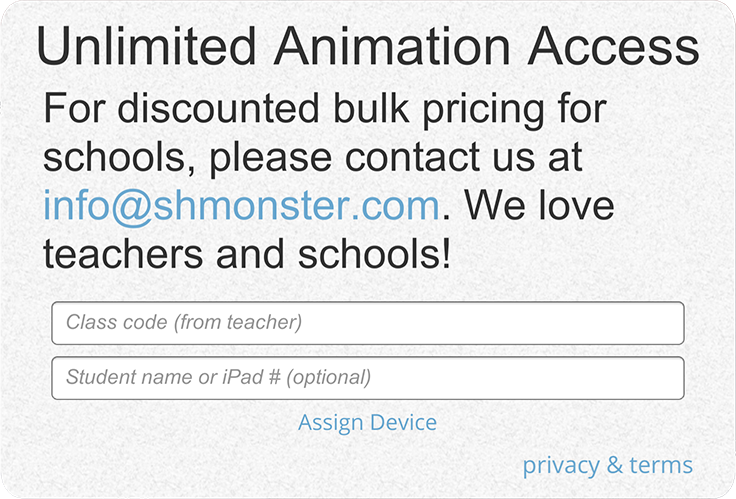
- In the pop-up – enter the activation code. In the second field, optionally, you can enter some identifying text for this device. It can be anything, but it must be unique per device. If you have 1:1 devices and this device is associated with a specific student, you can use their name or email. If these are shared devices used in your media library, you can use some other label. If you enter nothing, the device ID will be used.
- When you’re done entering – tap Assign Device.
- At this time, if there are still remaining unused seats in the subscription, the system will store this info and the PuppetMaster subscription will be active. From this point on, no further action is needed, and PuppetMaster can be freely used on this device, with all the functionality included in the subscription.
- Each device in your account on this page will now be listed when you expand the subcription. You can also delete devices in the future to free up a seat you want to assign to some new device. Therefore, we advise using something that you can recognize as your token for identifying the device.